
Guide
How to share to Instagram Stories from any app
to Stories works best when you add it to the iOS Share Sheet. Set it up once and you can send photos, videos, web pages and more straight to your Instagram Story from any app, in a couple of taps.
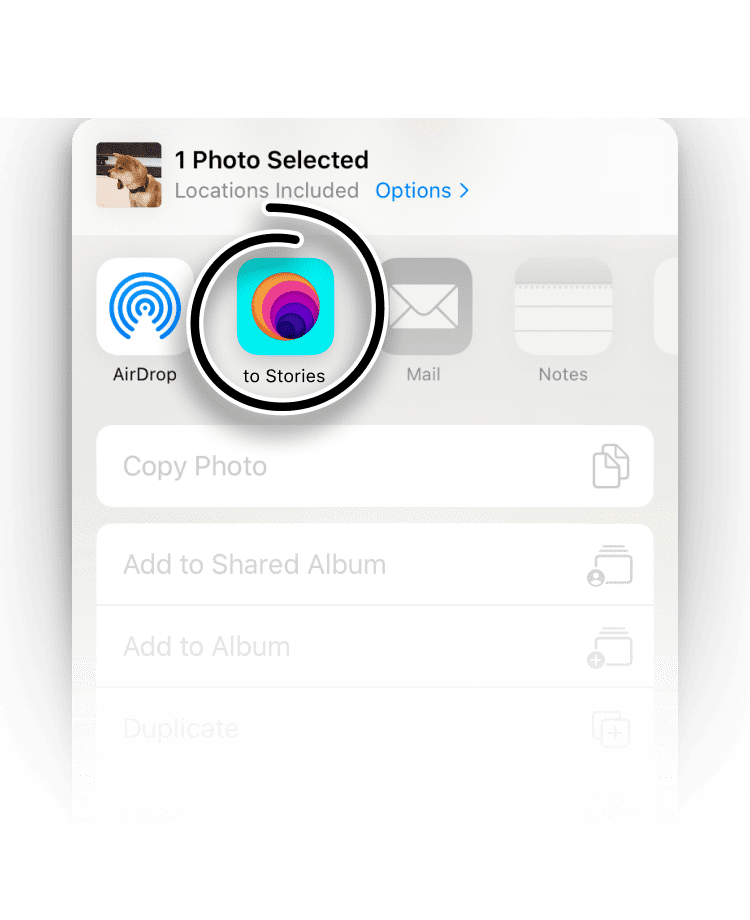
The iOS Share Sheet is the menu that appears whenever you tap Share in an app. Adding to Stories to it means every app that can share something, from Photos and Safari to YouTube and Apple Podcasts, can hand that content straight to to Stories, ready for your Instagram Story.
You only need to do this once. After to Stories is in your Share Sheet favorites it stays there, so posting to your Story becomes a two-tap habit instead of a chore.
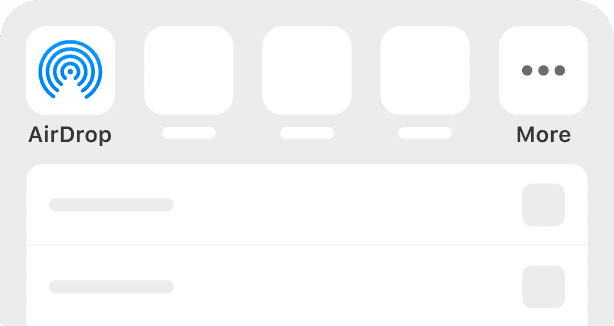
Open the Photos app, choose a photo and tap the Share button. Scroll the app row to the end and tap More.

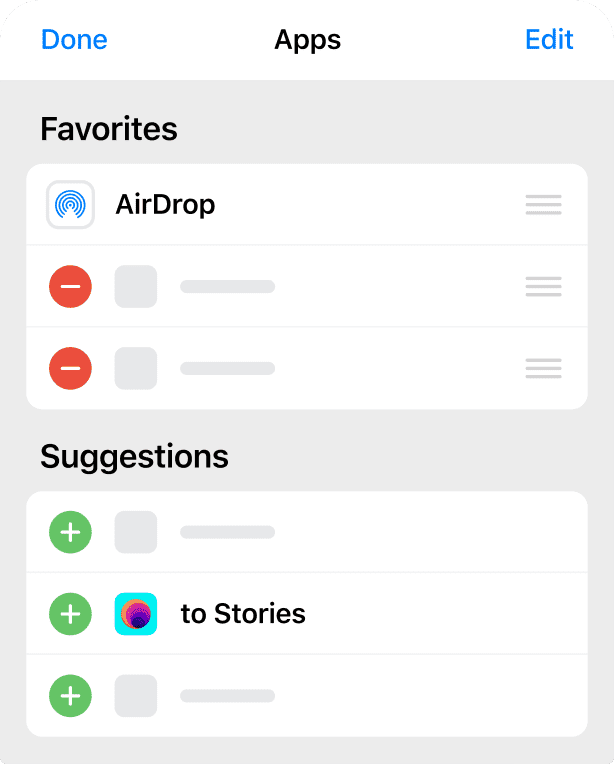
Switch to Edit mode and tap the green plus to add to Stories to your Favorites.
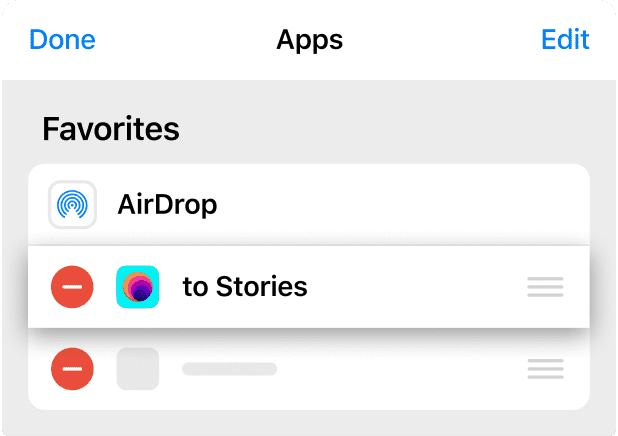
Drag to Stories to the top of the list so it is always easy to find and quick to reach.

That is it, your sharing workflow is ready. Any time you want to post to Instagram Stories, tap Share → to Stories.


Why the Share Sheet is worth setting up
You can open to Stories on its own, but that means leaving whatever app you are in, finding to Stories on the Home Screen and starting from scratch. The Share Sheet removes that detour. Whatever you are looking at, Share → to Stories carries it straight into a Story, with the photo, video or link already loaded.
The favorite is saved per device, so you set it up once on each iPhone or iPad and never think about it again. Every other guide on this site begins the same way: a tap on Share.
If to Stories is missing from the Share Sheet
If you do not see to Stories in the share options, check that the app is installed, then open the More screen at the end of the app row. That screen lists every app that can receive shared content. Switch it to Edit, add to Stories to your favorites, and drag it near the top so it is always easy to reach.
Frequently asked questions
Do I need to set this up again on a new iPhone?
Yes. Share Sheet favorites are stored per device, so repeat these steps once after you install to Stories on a new iPhone or iPad.
Why can’t I see to Stories in the Share Sheet?
Make sure the app is installed, then scroll the app row to the end and tap More. That screen lists every app that can receive shared content and lets you add to Stories to your favorites.
Does adding to Stories to the Share Sheet cost anything?
No. to Stories is free to download and use, and the Share Sheet shortcut is built in. An optional to Stories Pro subscription unlocks every feature.
Can I use to Stories without the Share Sheet?
You can open to Stories directly, but the Share Sheet is the fastest way to bring in a photo, video or link from another app.
Does to Stories post to my Story automatically?
No. to Stories prepares the Story and hands it to Instagram, where you add any final touches and tap to publish. Nothing goes to your Story without you.
Which apps can I share from?
Any app with a Share button, including Photos, Safari, YouTube, Apple Podcasts, Notes and X. If an app can share a photo, video, link or block of text, it can hand that content to to Stories.