
Guide
How to make a photo or video collage for Instagram Stories
to Stories builds collages straight from your camera roll, with perfect layouts for 2, 3, 4 and up to 9 photos or videos.
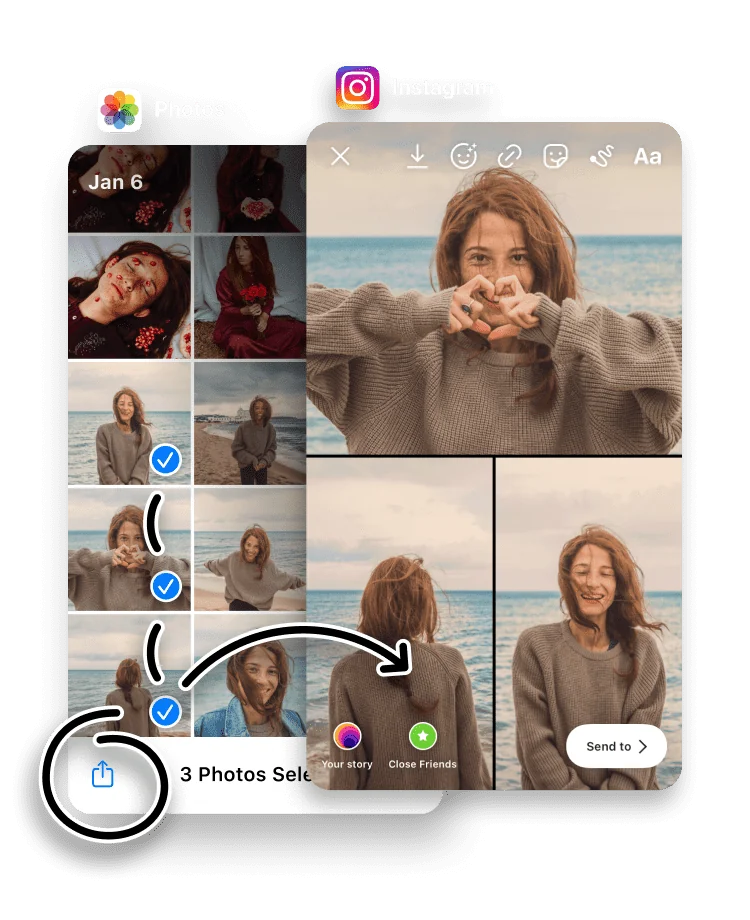
A collage places several photos or videos on one Story frame. It is handy for recapping an event, a trip or a product range without posting a dozen separate Stories. Arranging one by hand is tedious, so to Stories does the layout for you.
A collage is not limited to photos: a video collage works just as well, and you can mix photos and videos in the same collage, for example a couple of clips alongside a few stills from the same day.
Select the photos or videos you want and to Stories arranges them into a layout built for the vertical Story canvas. You stay in control: swap the layout, reorder the tiles and adjust the border to suit your style.
Not on an iPhone? The free in-browser Instagram Story collage maker draws the same 1080 × 1920 layouts in any browser, with no sign-up and no upload.
Open the Photos app and select a few photos or videos (you can mix the two), then tap Share.
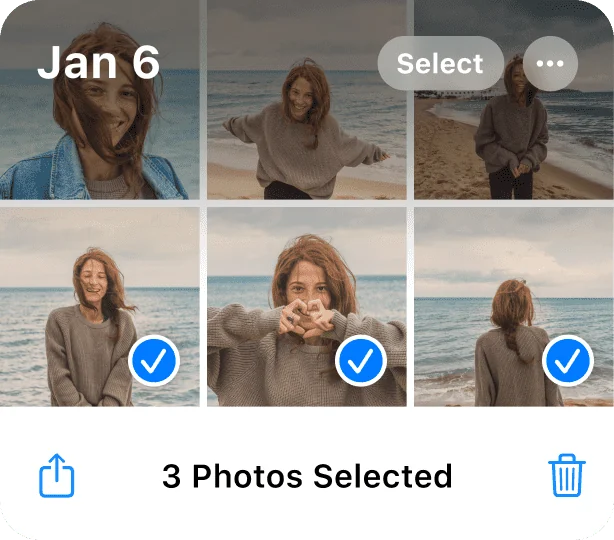

Choose to Stories in the Share Sheet.

The app automatically builds a collage from the photos or videos you selected.
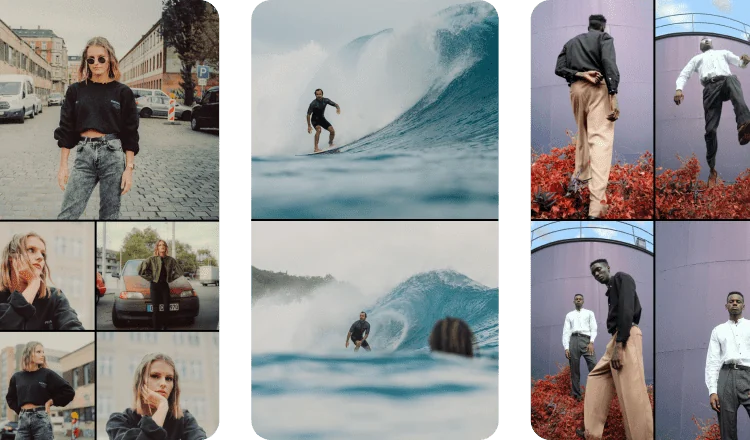
Pick a different layout, change the order, or adjust the border color to match your Story.

Long-press a photo and drag it to reorder the collage. Pinch with two fingers to resize or reposition any tile.
Choosing a collage layout
to Stories picks a layout to match the number of photos or videos you select, but that is only a starting point. Tap through the alternatives to find the arrangement that frames your photos best: an even grid for a set of similar shots, or a layout with one large tile when a single photo should lead. Every layout is sized for the 1080 x 1920 Story canvas, so the collage fills the screen with no empty bands.
Fine-tuning your collage
- Reorder tiles by long-pressing one and dragging it to a new spot.
- Reposition a photo inside its tile by pinching with two fingers, so the subject is not cropped out.
- Change the border color and thickness to suit the rest of your Story.
- Swap the layout at any time without losing the photos you selected.
Collage troubleshooting
If a photo looks badly cropped, long-press its tile and pinch to slide the image until the subject sits inside the frame. If the whole collage feels cramped, drop a photo or two, since nine tiles divide the canvas into small cells. To change which photos are included, return to the Photos app and start the share again with a new selection.
No iPhone? Make one in your browser
On a desktop, an Android phone or anywhere else, the free in-browser collage maker puts two photos into a Story-sized layout and saves a 1080 x 1920 PNG. It uses the same nine 2-photo layouts as the iOS app, draws everything locally so your photos stay on your device, and is a quick path when you do not have an iPhone to hand.
Frequently asked questions
How many photos can a collage hold?
Between 2 and 9 photos or videos. to Stories chooses a layout to match the number you select.
Can a collage mix photos and videos?
Yes. You can combine photos and videos in the same collage.
Can I change the layout after the collage is generated?
Yes. Pick a different layout, drag the tiles to reorder them, and change the border color at any time.
How do I resize one photo in the collage?
Long-press a photo and drag it to move it, or pinch with two fingers to resize and reposition any tile.
Why is my collage cropped or uneven?
Each tile crops its photo to fit its shape. Long-press a tile and pinch to reposition or resize the photo inside it, or switch to a layout whose tiles better suit your photos.
How many photos look best in a Story collage?
Three to six usually reads well on the tall Story canvas. Nine still works, but each tile gets small, so keep busy or detailed photos to a lower count.