
Guide
How to share a web page to Instagram Stories
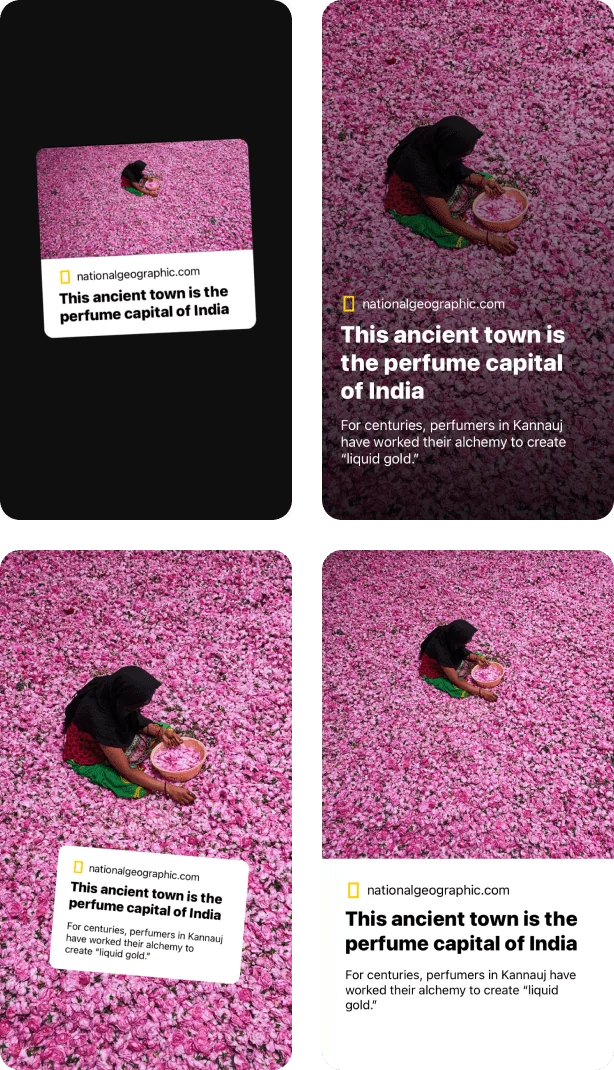
Share articles, news, blog posts and products to Instagram Stories instantly. to Stories gives you five layouts to choose from: Sticker, Poster, Poster Plus, Background and Page.
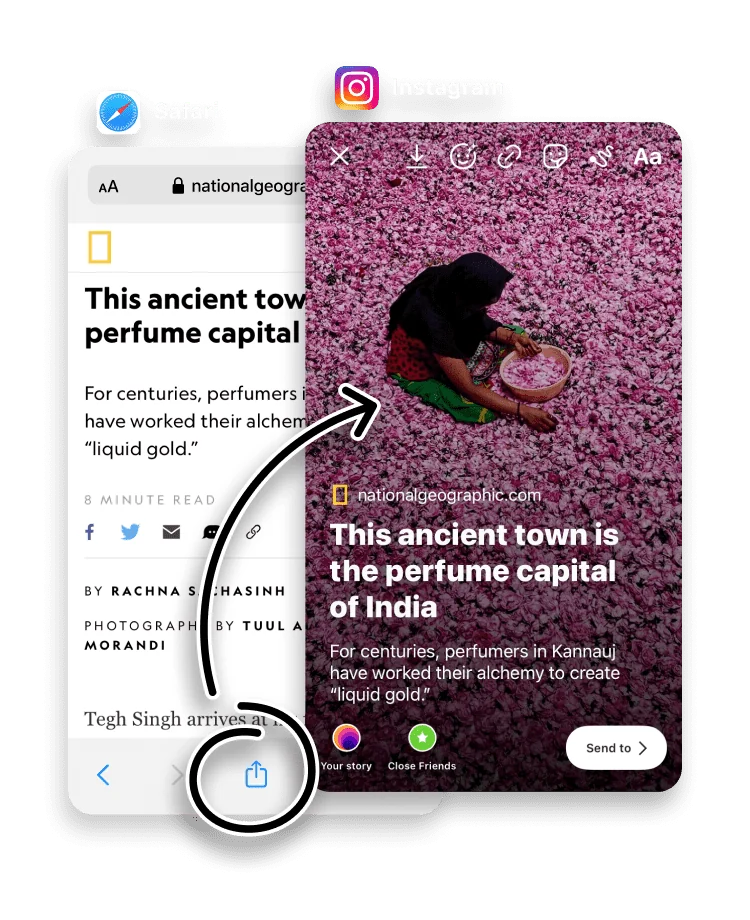
Dropping a raw link into a Story gives you a small, plain link sticker that is easy to scroll past. to Stories instead builds a designed card from the page, using its headline, image and source, so the share actually catches the eye.
It works for news articles, blog posts, product pages and more, with five layouts so the card matches the look of your Story.
Open the web page you want to share and find its Share button.


Choose the to Stories icon in the Share Sheet to generate a Story.

Your Story is ready to publish. Pick the layout you like best, or change the background color.
Making the card tappable
The card to Stories creates is a designed image, so tapping it does nothing on its own. To send viewers to the page, add Instagram's own link sticker to the Story next to the card and point it at the same URL. The card does the selling; the link sticker does the linking.
Choosing a layout
The five layouts suit different pages and Story styles:
- Sticker is a compact card you can place over a photo or video Story.
- Poster and Poster Plus give the page a bold, full-screen treatment when the link is the whole point of the Story.
- Background sets the page image behind your own caption.
- Page keeps the result close to a clean article preview.
What makes a good source page
to Stories builds the card from the page's own link-preview data, the same headline and image used whenever the link is shared elsewhere. A page with a clear title and a strong main image, such as a news article or a product page, produces the best card. A thin page with no preview image still works, but the result is plainer. Whichever layout you pick, the card is sized for the 1080 x 1920 Story canvas.
Frequently asked questions
What layouts can I choose from?
Five: Sticker, Poster, Poster Plus, Background and Page. Switch between them after the card is generated.
Does it work with any website?
Most web pages work: open the page, tap its Share button and choose to Stories. Pages with a clear title and image produce the best cards.
Can people tap the card to open the page?
The card is a designed image. To make it tappable, add Instagram’s own link sticker to your Story alongside the card.
Is to Stories free?
Yes. to Stories is free to download and use, with an optional Pro subscription that unlocks every feature.
Can I share a product page or shop link?
Yes. Product pages, shop listings, news articles and blog posts all work. A page with a clear title and a main image produces the cleanest card.
Why does my card look plain or have no image?
to Stories builds the card from the page's own link-preview data. If a page sets no preview image or title, the card falls back to a simpler design. Switching layout, or sharing a more detailed page from the same site, usually helps.