
Guide
How to share text and quotes to Instagram Stories
A great quote deserves more than a plain background. to Stories turns any block of text into a designed Story, with font choices, colors, gradients and formatting.
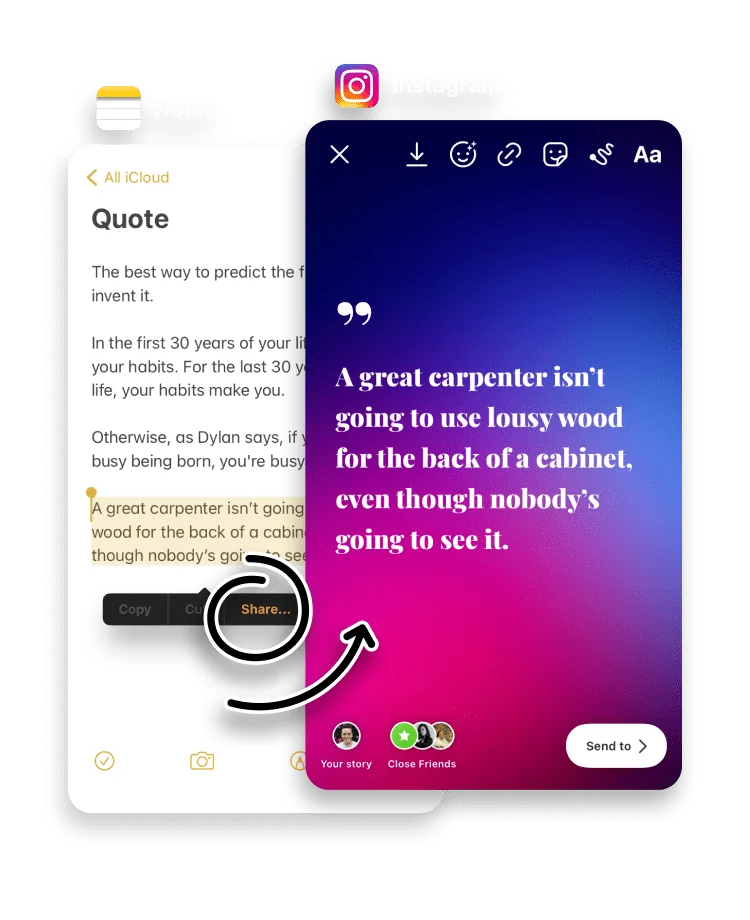
Text Stories, whether a quote, an announcement or a thought, are everywhere, but Instagram’s built-in text tools are basic. to Stories turns a block of text you select anywhere on your iPhone into a properly designed card.
Choose a font, set a background color or gradient, and adjust the formatting until the words look the way you want, then post straight to your Story.
Open a web page, select a block of text, then choose Share. You can do the same in Notes: select some text and choose Share.
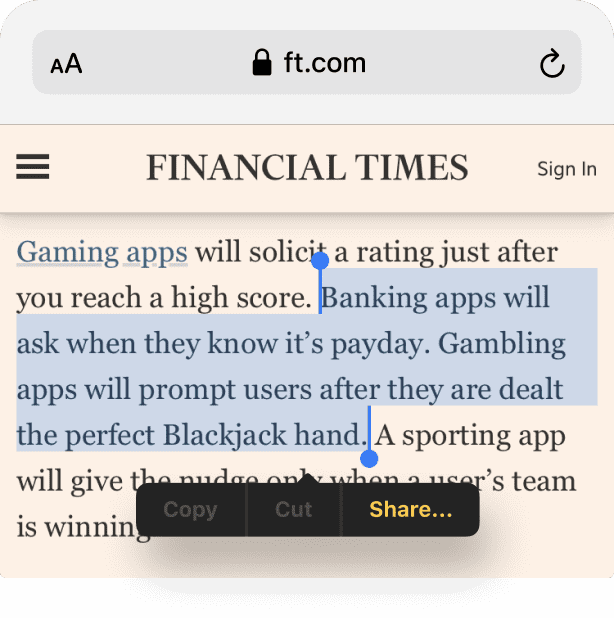

Choose to Stories in the Share Sheet.

Your Story is ready. Pick a font you like and experiment with background colors, gradients and text formatting options.
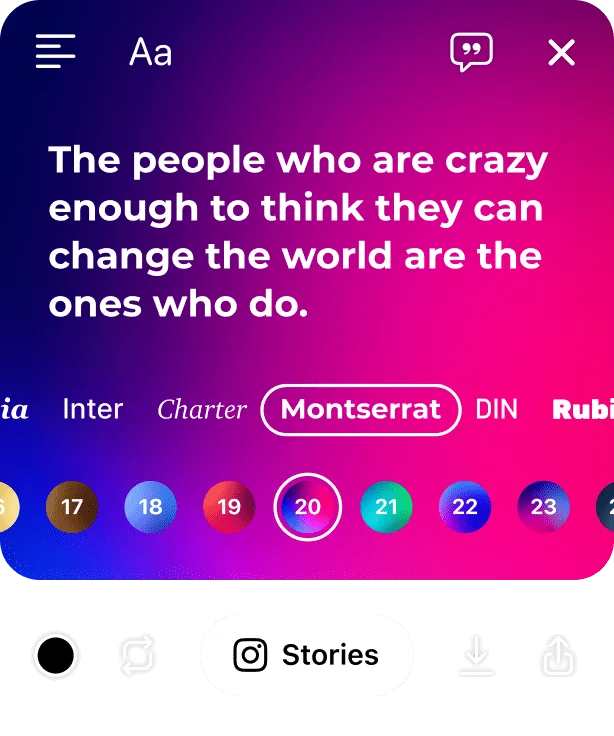
You can share text from any other app that supports text selection.
Getting text Stories to read well
Text Stories live or die on legibility. The Story canvas is tall but not wide, so a short quote, a single sentence or a punchy announcement reads far better than a dense paragraph. If you have more to say, split it across a few Stories rather than shrinking one to fit. Keeping the words inside the Story safe zone, clear of the top and bottom where Instagram places its own interface, stops a line being half-hidden behind a button.
to Stories vs Instagram's built-in text tool
Instagram has a text mode for Stories, but it offers a short list of fonts and backgrounds and little formatting. to Stories gives you more fonts, full background color and gradient control, and formatting options, and it brings in text you selected anywhere on your iPhone instead of making you retype it.
Frequently asked questions
Where can I select text to share?
Any app that supports text selection, such as Safari, Notes and Apple Books. Select the text and choose Share.
Can I change the font and background?
Yes. to Stories offers several fonts, background colors, gradients and text formatting options.
Is there a limit to how much text I can share?
There is no hard limit, but short quotes and notes read best, since a long passage can become too small to read on the Story canvas.
Is to Stories free?
Yes. to Stories is free to download and use, with an optional Pro subscription that unlocks every feature.
Why is my text too small to read?
A long passage shrinks to fit the Story canvas. Trim it to a short quote or a single idea, or split a longer piece across more than one Story, so the words stay large enough to read.
Can I match a text Story to my brand?
Yes. Set the background color or gradient and choose a font, so a run of text Stories shares a consistent look.